Jamf Reports 2.11.0: Jamf School Catches Up, and Protect Joins the Backup
Jamf Reports 2.11.0 brings Jamf School workspaces level with Jamf Pro, backs up Jamf Protect alongside Jamf Pro, keeps warnings on screen until they're fixed, and drops the CSV requirement.
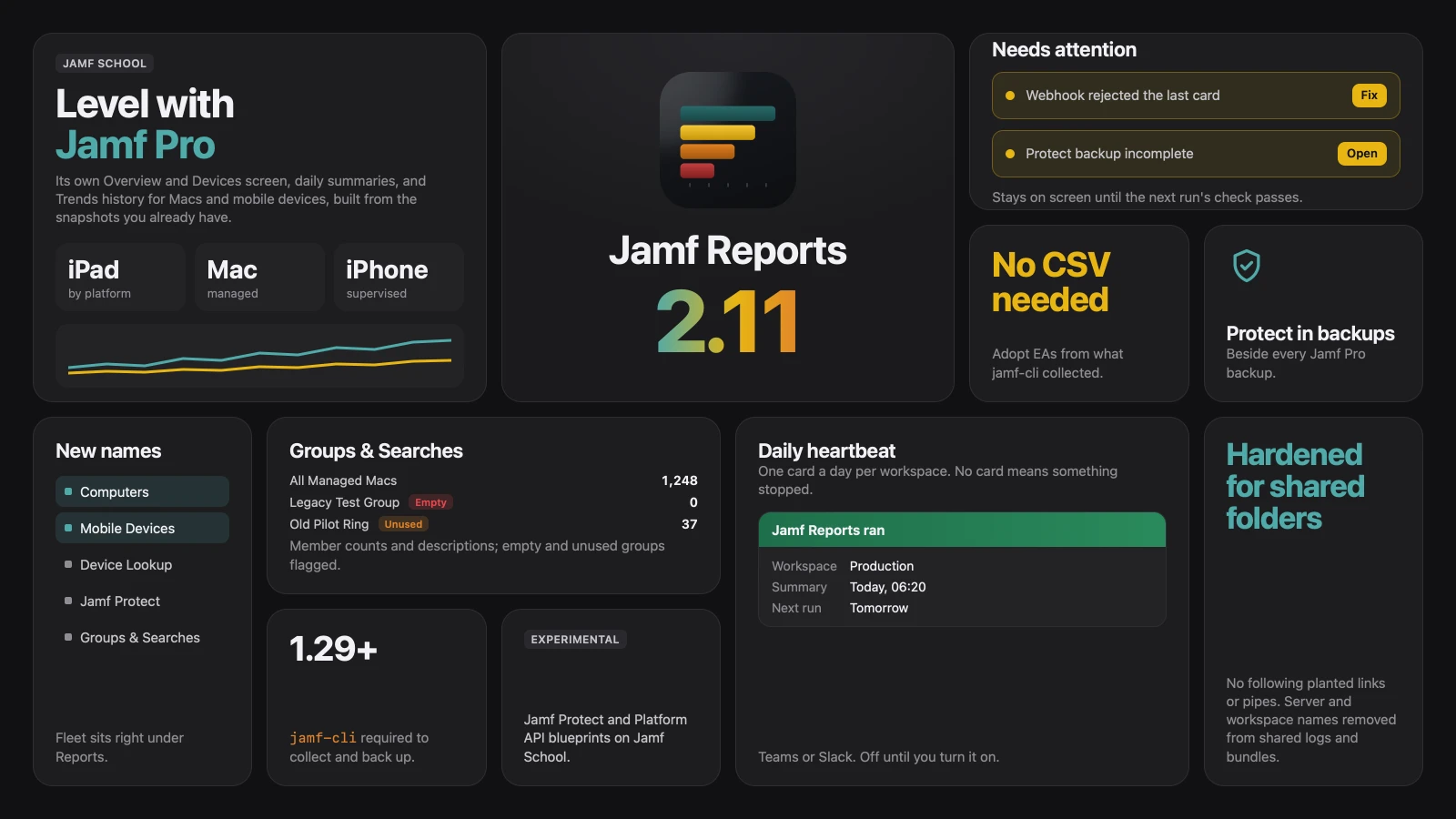
Jamf Reports 2.11.0 is out. A Jamf School workspace now gets the same treatment as a Jamf Pro one, a Jamf Pro backup also backs up Jamf Protect, warnings you need to act on stay on screen until they’re fixed, and reports no longer need a CSV export.
Jamf Reports is a free, open-source, native macOS app that builds historical fleet reports from the Jamf Platform. If you’re new to it, the 2.9.0 post explains what it is and why it exists, and Getting Started below covers the installation. If you’re already running it, go straight to Upgrading from 2.9 or 2.10. This release has two changes you should read about before you install.
Since 2.9.0
I didn’t write a post for 2.10, so here’s the short version before getting to 2.11.
- Connect with Jamf Account. For Jamf Cloud, setup now leads with the Jamf Platform API. You pick a region and an environment, and the app checks the ID before it saves anything. Connect a Jamf Pro server is still there for on-premises and GovCloud.
- Jamf School became a workspace of its own, showing only the screens that apply to it.
- Reports that point at the Macs. “Needs attention” lines link to the Macs they count, and Macs enrolled without the Jamf binary are listed separately, with how to fix them.
- Every
jamf-clicall has a time limit, and two scheduled runs can no longer start together. - 2.10.1 added a check for new releases. It tells you one is out and never installs anything, and a configuration profile can turn it off.
What’s New in 2.11.0
The release notes group the changes by theme, and the CHANGELOG lists every one of them. But, here’s the short version:
- Jamf School workspaces get their own Overview, Devices screen, daily summaries, and Trends history. This should be dynamic based on the
jamf-cliprofile - A Jamf Pro backup also exports Jamf Protect’s configuration (if applicable).
- Warnings you need to act on show as “Needs attention” until the next run’s check passes.
- Extension Attributes come from what
jamf-clicollected. No CSV export required. - Notifications can send a daily heartbeat card.
- Devices is now Computers, and Mobile Fleet is now Mobile Devices.
- Scheduled runs and backups need
jamf-cli1.29.0 or later.
Jamf School, Level with Jamf Pro
In 2.10, a Jamf School workspace was mostly a workbook. In 2.11, it gets its own screens:
- Overview shows School’s own data, device counts by platform included.
- Devices lists every device Jamf School manages: name, serial, model, OS, managed, supervised, and last check-in. It has filters for managed, unmanaged, and stale devices, and a search.
- Trends builds history for Macs and mobile devices. Each collect saves a daily summary, and the first collect after the upgrade backfills history from the snapshots already in your workspace, so the charts don’t start empty.
- The School workbook gets a Trends tab with one row per day.
Two experimental pieces came in too. Jamf Protect can now be connected to a Jamf School workspace. It’s collected after each School collect, gets its own screen, and its computers are matched to School Macs. Jamf School setup can also save Platform API access for blueprints. Turn on “Do you also have Platform API configured for Jamf School?” and enter the region, tenant ID, client ID, and secret. The app checks them once and tells you if the tenant ID or a permission is wrong.
Note: A Jamf School workspace no longer shows Jamf Pro screens it has no data for. If you came from 2.10, expect a shorter sidebar on School workspaces. That’s on purpose.
Jamf Protect in Your Backups
When Jamf Protect is connected to a Jamf Pro workspace, a backup now exports Jamf Protect’s configuration into the same backup folder. A Protect failure never costs you the Jamf Pro backup.
There’s one exception you should know about. On a synced or shared folder (OneDrive, Dropbox, iCloud Desktop & Documents, an SMB share), the Protect part is skipped by default. Protect’s action configurations can hold request headers and data-forwarding settings, and I didn’t want those landing on synced storage unless someone decided they should. If your storage policy allows it, turn on Back up Jamf Protect in this folder on the Backups screen, or set:
1
2
protect:
  backup_on_synced_storage: true
On a shared folder, each Mac confirms that setting once before it applies there.
Tip: If your Protect tenant has nothing to export yet, the backup still reads as complete. A Protect part that actually fails keeps that backup from being pruned until a later one succeeds, up to ten backups.
Needs Attention
Until now, a lot of “you should fix this” lived only in the run log. A Teams webhook that rejected a card, for example, failed quietly until somebody went looking. In 2.11, these show in the health strip at the top of every screen, with a button to the screen that fixes them:
- a webhook that rejected a card
- a Jamf Protect backup that was skipped or incomplete
- a Jamf School collect that returned no devices
- an Extension Attribute snapshot the app couldn’t read
- a large Fleet Drift change
- a mobile device list that couldn’t be saved
Each one clears on its own once the next run’s check passes. Dismiss hides it on this Mac until it clears and happens again.
No CSV Required
This is the biggest change for long-time users. Since the Python days, custom Extension Attribute reporting needed a Jamf Pro CSV export and a column map in config.yaml. That’s gone.
Adopt EAs, on the Extension Attributes screen and Data Sources, lists the Extension Attributes jamf-cli already collected, with a guessed type for each. Pick the ones you want and they’re added to config.yaml as tracked EAs or security agents. Custom EA tabs and the EA Warnings sheet are built from the collected values. EA Warnings also says whether an EA is missing from Jamf Pro or is defined with no values.
Note: You can still import a CSV once from the Adopt EAs sheet. It’s read once and isn’t kept in a folder the app watches.
A Daily Heartbeat
The dead-man switch has always told you when a schedule stops, as long as the app is open. That doesn’t help when the Mac running the schedule is off, asleep, or sitting in a closet.
With the heartbeat on, the background item posts one short card a day per workspace to your Teams or Slack webhook, saying it ran. Alert on a day with no card, and you’ll know a Mac or its background item stopped. Turn on Send a daily heartbeat under Notifications, or:
1
2
3
4
5
notify:
  enabled: true
  provider: "teams"
  url: "https://..."
  heartbeat: true
It’s off by default. Run now doesn’t send one.
New Names and Smaller Things
- Devices is now Computers, and Mobile Fleet is now Mobile Devices, matching Jamf Pro’s naming. A community member asked for this one. The sidebar’s Fleet group sits right under Reports and holds Computers, Mobile Devices, Device Lookup, Jamf Protect, and Groups & Searches. Saved sidebar choices, export file names, and workbook sheet names didn’t change, so scripts that read them keep working.
- Groups & Searches shows member counts and descriptions, and flags empty groups and groups no policy or profile uses.
- Protect shows which Protect computers match a Jamf Pro computer, by hardware UUID or serial number and never by name, and which ones don’t.
- Empty screens suggest a
jamf-reports collectcommand you can copy, another community request. - A configuration profile can turn AI off or limit it to on-device models with the
AIPolicykey, whatever each workspace’sconfig.yamlsays.
Security
A lot of 2.11’s work went into workspaces kept in a shared team folder.
- On a shared folder, the app no longer follows links or reads named pipes another Mac could plant among its snapshots, logs, and state files.
- A planted status file can no longer crash this Mac’s scheduled runs.
- Shared logs and diagnostic bundles remove the host of every server in your
jamf-cliconfiguration, the workspace name, and phone numbers. - Secrets typed during setup are wiped from memory when setup ends, fails, or is closed.
Before release, I ran a Claude Security change scan over the whole 2.11 diff and a Monocle review. The one real finding (that planted status file) and the review’s Protect backup items were fixed before tagging.
Upgrading from 2.9 or 2.10
Download the .pkg or the .dmg from the release page and install it over your current version. If you were on a 2.11 beta, the release has a higher build number, so it installs straight over it.
Warning:
jamf-cli1.29.0 or later is now required to collect or back up. Before, an olderjamf-cligot a warning and kept going. Now the run stops and tells you to update. Check before you install:
1
jamf-cli --version
Warning: The CSV workflow is retired. The Columns tab, the CSV Inbox, and the
csv-inbox/folder are no longer used. A schedule set to CSV Assisted now runs as Refresh + Generate, and Run History notes that on each run. If you relied on CSV-only Extension Attributes, run Adopt EAs after your first collect.
A few settings are no longer read: columns, mobile_columns, charts.archive_current_csv, and exceptions[].control_id. Config Doctor lists any still in your config.yaml and tells you they can be deleted.
Getting Started
You need macOS Sequoia 15 or later on Apple silicon, jamf-cli 1.29.0 or later, and read access to Jamf Pro or Jamf School. Download JamfReports-2.11.0.pkg or the .dmg from the release page. Both are notarized.
The wiki walks through the rest, step by step:
- Getting Started: from a fresh Mac to your first report.
- Installation and App Onboarding: installing the app and
jamf-cli, and what setup asks. - Permissions and Access: the API privileges and Jamf Account permissions each report needs.
- Command Line: the included
jamf-reportstool for scripted collects and reports.
Tip: Want to look around first? Turn on demo mode at first launch. It loads a fictional organization, so you don’t need a Jamf server or
jamf-cli.
Verification
- Run History shows each collect and backup, and names any source that didn’t land and why.
- The health strip shows “Needs attention” items, if there are any. On a clean run it’s quiet.
jamf-reports check --profile <name>lists every config and workspace finding, with a fix for each. Retired keys show up here.- Backups says whether the latest backup includes Jamf Protect, and if not, why.
Warning: “Jamf Protect not backed up” on a synced folder isn’t a failure. It’s the default described above. Turn on Back up Jamf Protect in this folder if your storage policy allows it.
Resources
- Release notes: v2.11.0, and all releases
- Full change list: CHANGELOG
- Wiki: Jamf School, Managed Preferences, Security and Operational Considerations
jamf-cli: concepts.jamf.com/concepts/jamf-cli
Support
If something breaks, or a number doesn’t match what you see in Jamf Pro or Jamf School, open an issue on GitHub. Jamf Protect on a School workspace and the School Platform API pieces are experimental, so reports from people running them are especially welcome.
Thanks to the people who tested the 2.11 betas and filed issues, to the team behind jamf-cli at Jamf Concepts, and to Dan K. Snelson for Monocle and for the release-post format I keep borrowing.