Building a Mac Platform Intelligence System for Release Notes, Security Advisories, and Weekly Digests
Using Feedly, Make, Notion, and Claude to organize Mac admin news into a structured workflow.

There’s no shortage of information in the Mac Admin space. Between product release notes, changelogs, security advisories, community blogs, and vendor bulletins, staying current can feel like a full-time job layered on top of your actual full-time job. For a while, my approach was a mix of browser bookmarks, Slack notifications, and hoping I didn’t miss anything critical.
I decided to rebuild that process into something intentional — a structured pipeline I’m calling the Mac Platform Intelligence (MPI) System, built on Feedly, Make, Notion, and Claude. This has been part of the necessity to keep up-to-date information flowing to my team, but also a fun, exploratory adventure as I continue to test what I can do with the AI tools I have at my disposal.
The Problem
As a Senior Mac Engineer and Team Lead, I take it upon myself to be the one person on my team who is as connected as possible to Apple-related news and any ongoing issues with the products and services we use. It is not uncommon for the team to see a group chat message from me along the lines of “Apple has released the following updates for general release…” or “Currently tracking this random issue with this random app that other organizations are experiencing via Mac Admins Slack.”
This has been beneficial for tracking issues before tickets flow into our team and for quickly starting testing new updates and planning change requests for deployments. Outside of the Mac Admins Slack, I use Feedly as my preferred RSS reader to keep up with tech news.
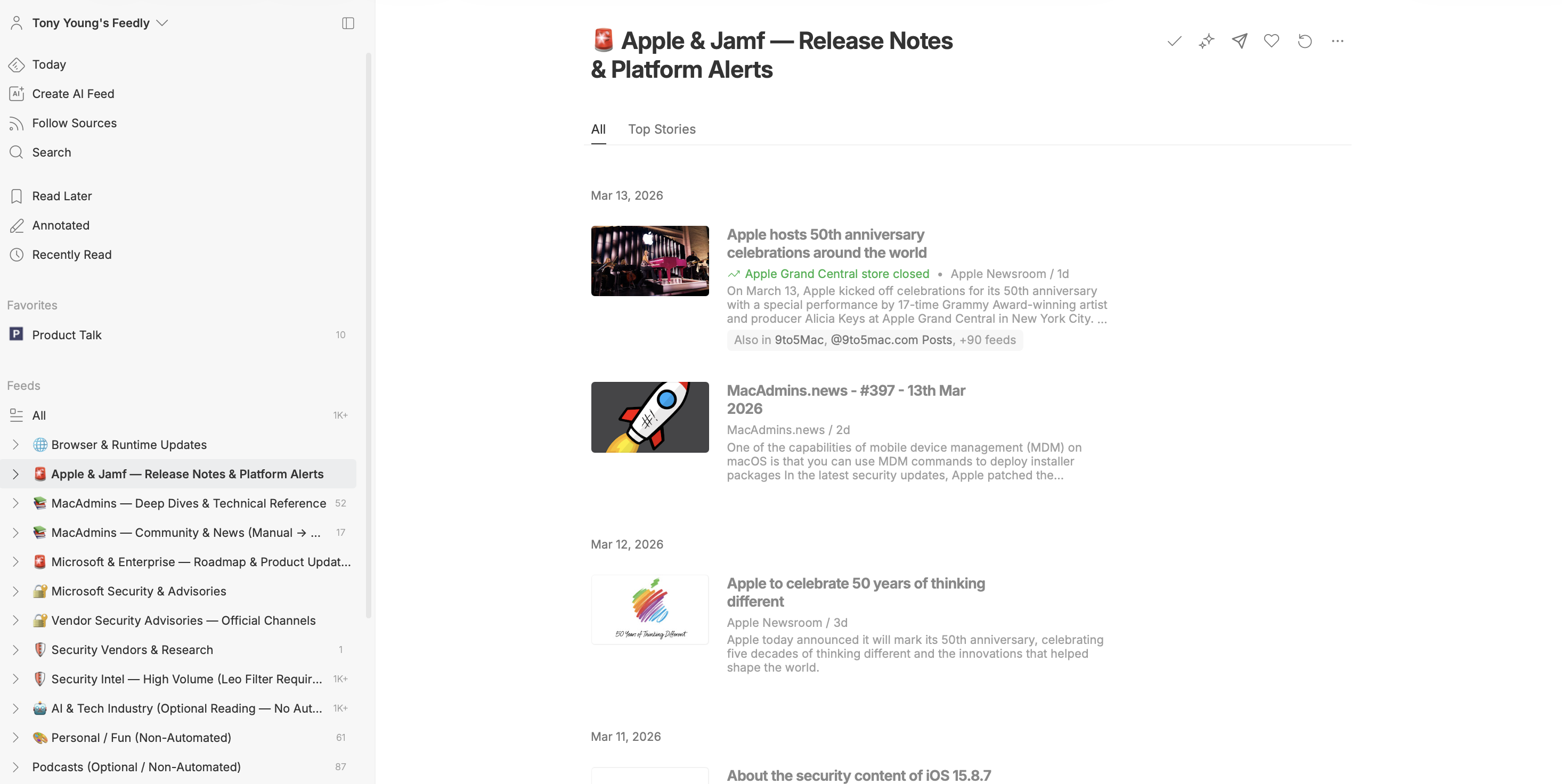
RSS feeds are powerful but noisy. My Feedly account had grown into a sprawling collection of subscriptions across an ever-expanding set of folders. Important sources like Apple Security Advisories were buried alongside less important blogs I’d subscribed to years ago. The result was a reading list that felt overwhelming to open, let alone act on. Or I would be hit with things that weren’t relevant to my role or that I didn’t care about, such as Microsoft Windows vulnerabilities.
What I actually needed wasn’t more information — it was structured information with clear triage built in.
Designing the Architecture
Before touching any tool, I mapped out what I actually wanted:
- Automatic capture of release notes and security advisories into Notion, without me having to do anything
- AI-assisted severity classification for security feeds, so articles get a useful triage label before I ever read them
- A deliberate curation path for articles I want to develop into knowledge base articles
- A weekly digest delivered to my team in Microsoft Teams every Monday morning
- A personal reading lane for content that doesn’t need to live anywhere except my brain
That became four tiers:
| Tier | Purpose | Destination |
|---|---|---|
| 1 | Auto-capture: Release notes & advisories | Notion (automated) |
| 2 | High-volume security feeds | Feedly AI filter → manual review |
| 3 | KB candidates | Feedly Board → Notion (manual save) |
| 4 | Personal reading | Feedly only |
Restructuring Feedly
The first step was reorganizing my Feedly folders to match the tier structure. I exported my existing subscriptions as an OPML file, restructured the folder names to reflect their purpose and automation tier, and reimported. The folder names now serve as documentation — anyone looking at the setup can understand the intent immediately.
The six Tier 1 folders that feed automatically into Notion:
- 🚨 Apple & Jamf — Release Notes & Platform Alerts
- 🚨 Microsoft & Enterprise — Breaking Changes & Roadmap
- 🔐 Microsoft Security & Advisories
- 🔐 Vendor Security Advisories — Official Channels
- 🛡️ Security Vendors & Research
- 🌐 Browser & Runtime Updates
The emoji prefixes aren’t just decoration — they make the tier hierarchy immediately scannable in Feedly’s sidebar, and they carry through as the Feed Folder value in Notion, which the weekly digest uses for categorization.
The Vendor Security Advisories folder also includes a custom Stack CVE & Zero-Day Feed built with Feedly’s AI filtering. It filters for Vulnerability or Zero-day content that mentions any tool in our stack — Apple, Jamf, CrowdStrike, Zscaler, Okta, Tanium, Palo Alto GlobalProtect, Microsoft Entra, and others — while excluding Windows Server, Active Directory, and Linux kernel content. It runs as a title-and-content filter since CVSS score filtering requires Feedly Enterprise. The volume is still being tuned, but it’s already surfacing CVEs that would have otherwise been buried.
Building the Make Automation
Make is the automation layer. Six scenarios handle Tier 1, each following the same pattern: Feedly Watch Articles in Category → Notion Create Database Item.
One thing I learned the hard way: Make’s Feedly trigger module can only be used once per scenario. You can’t watch multiple folders in a single scenario with a router — each folder needs its own scenario. That’s just how the module works, and fighting it isn’t worth it.
Each scenario is scheduled at a different interval based on how time-sensitive the source actually is:
| Scenario | Interval | Rationale |
|---|---|---|
| 🔐 Microsoft Security & Advisories | 1 hour | Security content, higher priority |
| 🔐 Vendor Security Advisories | 1 hour | CISA KEV and exploit feeds |
| 🚨 Apple & Jamf Release Notes | 2 hours | Releases don’t need 15-min detection |
| 🛡️ Vendor Security Research | 2 hours | Research articles, not breaking news |
| 🌐 Browser & Runtime Updates | 2 hours | Release atoms update infrequently |
| 🚨 Microsoft & Enterprise Roadmap | 4 hours | Roadmap content, not time-critical |
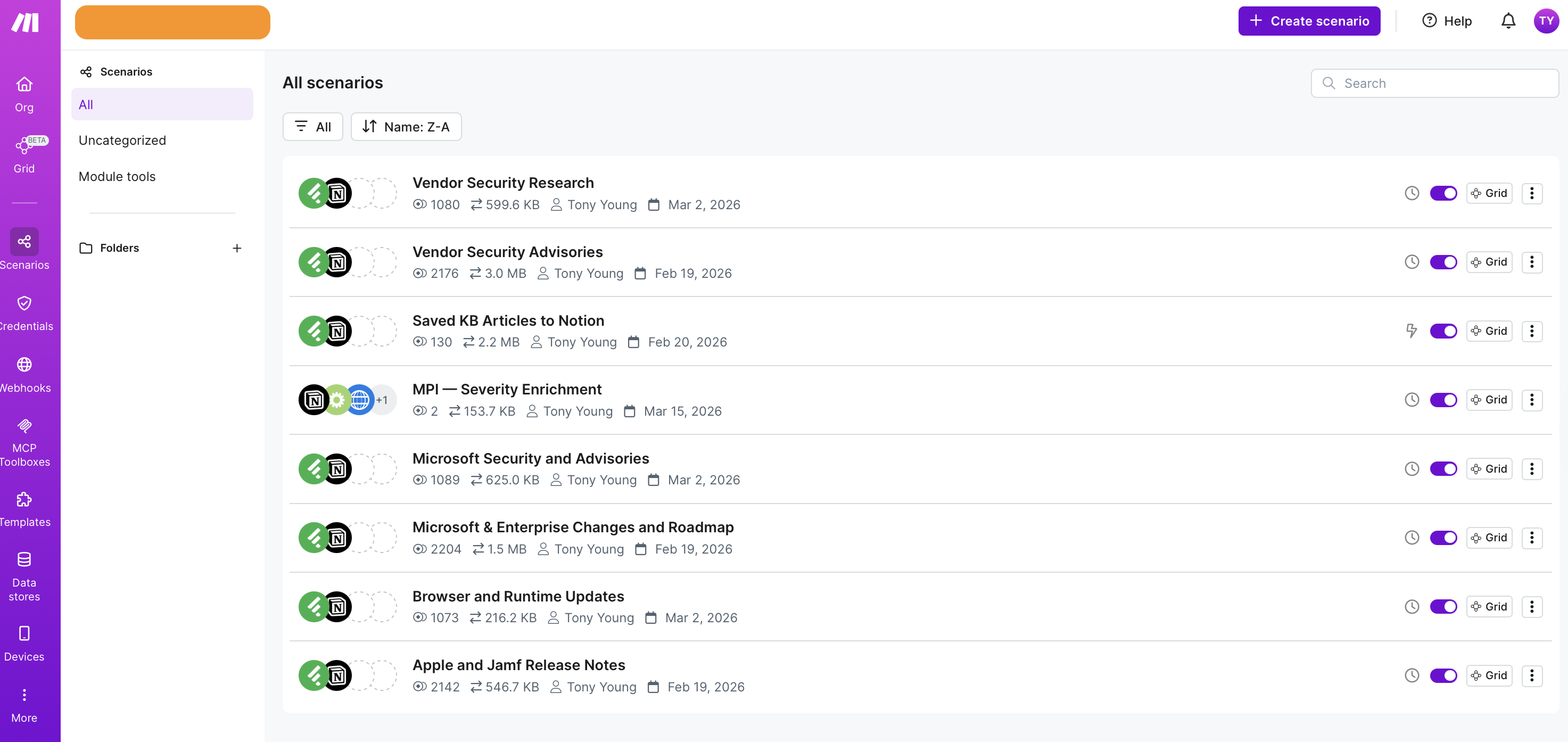
Running everything at 15-minute intervals sounds responsive, but it burns through Make’s operation credits fast — especially on the Core plan. Each scenario run costs 1 credit minimum, regardless of whether it finds anything. At 15 minutes across 6 scenarios, that’s 576 polling credits per day before a single article is captured. Tiering the intervals cut that by around 85%.
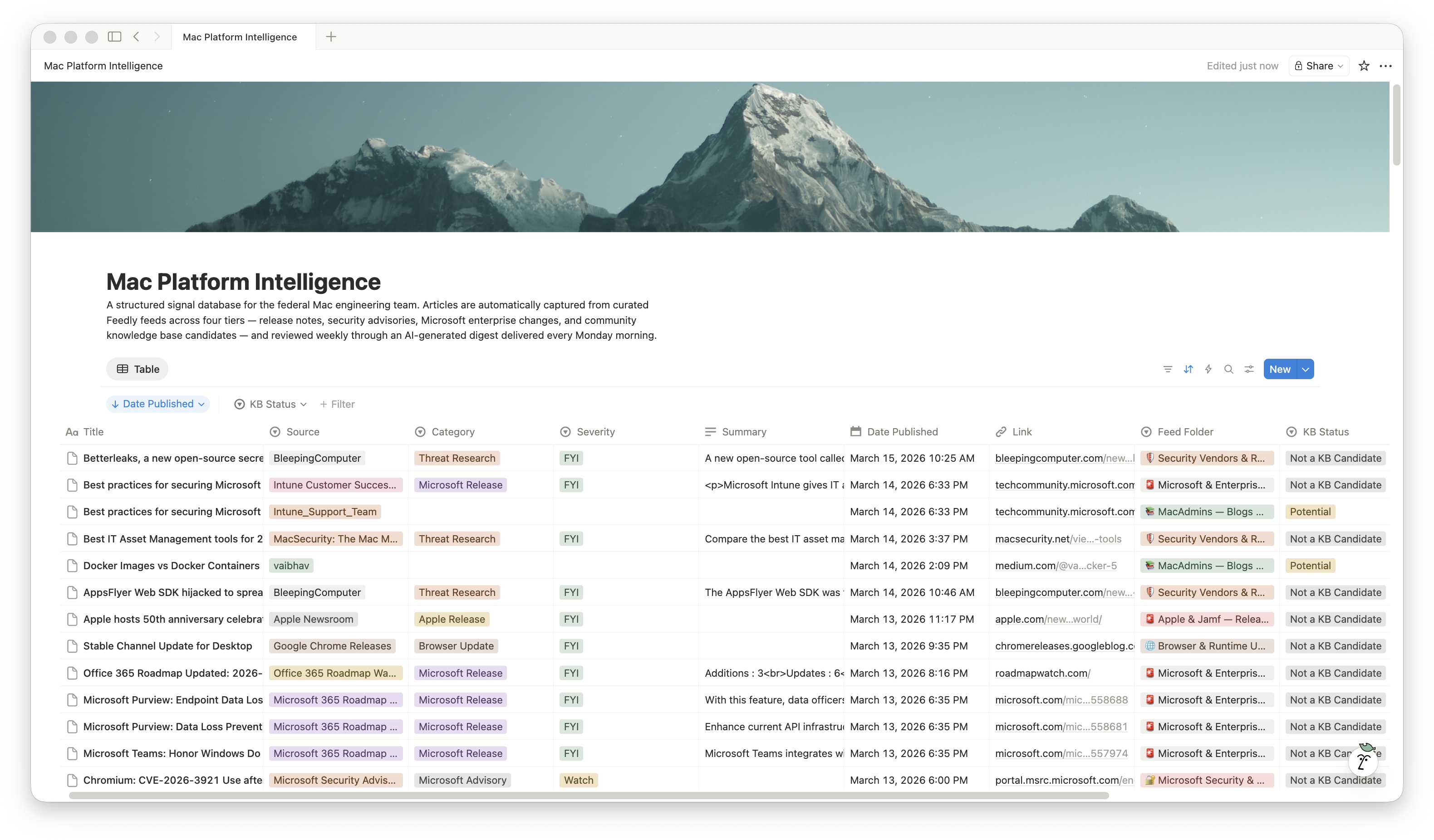
The Notion field mapping is consistent across all six scenarios:
- Title → Article title (comma-stripped)
- Summary → Article content, truncated to 1,900 characters to stay within Notion’s 2,000-character rich text limit
- Link → Article URL
- Date Published → Publication timestamp
- Source → Feed source title (comma-stripped)
- Feed Folder → Static value matching the Feedly folder name
- Category → Static value per folder (Apple Release, Microsoft Release, Security Advisory, etc.)
- Severity → Default value (FYI or Watch, depending on folder)
- KB Status → Not a KB Candidate
One note on Microsoft feeds: the M365 Roadmap RSS is intentionally thin — it links to JavaScript-rendered pages with no article body. I supplemented that scenario with the Microsoft Tech Community blog and the Office for Mac blog, which publish full articles.
AI Severity Enrichment
The default severity for most articles is FYI. That’s fine for release notes, but security content needs better triage. I built a separate Make scenario — MPI — Severity Enrichment — that runs after capture and reclassifies articles from the three security folders that were assigned FYI by default.
The scenario flow:
- Notion: Watch Database Items — polls for new entries
- Filter gate — passes only items where Feed Folder is one of the three security folders AND Severity is FYI
- HTTP: GET — fetches the full article from the Link field
- Make AI Toolkit: Ask — sends the article title and up to 8,000 characters of fetched content to the classification prompt
- Notion: Update Page — writes the result back to the Severity field, with
ifempty(result; "FYI")as a fallback
The classification prompt gives the model full context about the environment — 1,000 federal macOS devices, Jamf Pro on-prem, NIST 800-53 r5 Moderate, DISA STIG — and instructs it to respond with exactly one word: FYI, Watch, or Critical. No explanation, no punctuation.
This scenario is built but not yet battle-tested. The first real evaluation happens after the next credit reset.
The KB Candidate Workflow
Tier 3 is deliberately manual.
When I’m reading in Feedly and come across something worth turning into a KB article, I save it to a Feedly Board called KB Candidates. Make detects the save via the New Article In Board trigger (an instant webhook, not a poll) and creates a Notion entry with KB Status set to Potential.
The Summary field is intentionally left blank. The article URL is the source of truth. When I’m ready to draft, I’ll point a tool at the URL with a structured prompt rather than work from a truncated excerpt. Notion is the task tracker here, not the content store.
The Weekly Digest
This is where it all comes together. Every Monday morning, Claude runs a scheduled task via Cowork (Claude Desktop’s automation feature) that queries the MPI Notion database, reads select articles from the past week, fetches the full URL for each one, writes an internal assessment, and delivers a structured digest to Microsoft Teams via an incoming webhook.
I admit to getting a ton of inspiration from Armin Briegel of Scripting OS X and his Macadmins.news newsletter, which is mandatory reading for me each and every week. While I’m not in the business of attempting to make my own newsletter, the idea is to ensure my team has everything they need, especially from a security vulnerability tracking perspective to set ,them up for success for the week ahead.
The digest arrives as two Adaptive Cards:
Card 1 — Operational Digest
Organized into sections: Critical (omitted entirely if empty), Security Advisories, Apple & Jamf, Microsoft & Enterprise, Threat Intelligence, and Browser/Runtime/Tool Updates. One to two sentences per item. The full thing is triageable in under five minutes.
Card 2 — Radar & Professional Development
Worth Watching (two to three items max) and Professional Development (one to two items max). Skipped entirely if nothing qualifies.
The key difference from what I originally built: Claude reads the full article at digest time, not just the Feedly summary. The Notion database is a work queue, not a content store. By the time Monday rolls around, Claude is working from full article text — which makes the analysis actually useful rather than just a restatement of the RSS excerpt.
The first few runs have been solid. It correctly identified Deployment Watch items, flagged KEV additions relevant to our stack, and noted when security content did not apply to our environment. That last point matters. A tool that turns everything into urgent noise is worse than no tool at all.
To make that a little more tangible, I also built a simple mockup showing how the weekly digest is intended to appear in Microsoft Teams. The goal is not to make it flashy. It just needs to be easy for the team to scan on a Monday morning and quickly understand what actually needs attention.
Mockup: Below is a visual example of how the weekly digest is designed to appear in Microsoft Teams.
If the embedded preview does not load properly on your device, open the mockup in a new tab: View the Teams digest mockup.
Tools and Cost
| Tool | Plan | Monthly Cost |
|---|---|---|
| Feedly | Pro+ | $8.25 |
| Make | Core | $9.00 |
| Notion | Free | $0.00 |
| Anthropic API | Pay-as-you-go | ~$0.10 |
Total: ~$17.35/month
The Anthropic API cost covers the severity enrichment scenario. The weekly digest runs through Claude via Cowork, which is included in a Claude subscription rather than billed separately through the API.
What’s Working and What Isn’t
After a few weeks of running, here’s an honest assessment:
Working well:
- All six Tier 1 scenarios are capturing reliably with no manual intervention
- The tiered polling schedule is holding credit usage to a manageable level
- The Feedly Stack CVE Feed is surfacing relevant CVEs that would have been buried in general security noise
- The KB board trigger is instant and frictionless — two taps in the Feedly mobile app
- The weekly digest lands in Teams every Monday and is actually useful for the team, not just me, based on feedback from others on my early setup.
Still being evaluated:
- Severity enrichment quality at scale — the scenario is built but hasn’t run through a full month yet
- Stack CVE Feed volume — still tuning source selection to eliminate Linux security noise
- Feely AI filtering – Feedly lets you mute keywords, or build AI feeds based on all of the content within a given folder. My next phase is to start building AI feeds to do both filtering and muting.
- Digest signal quality on quiet weeks — it’s easy to look good when there are clear Deployment Watch items; a slow news week is the real test
What I’d change if starting over:
Running six separate Make scenarios for what is essentially the same two-step flow feels redundant. The constraint is real — the Feedly trigger module doesn’t support multi-folder watching — but I’d spend more time upfront evaluating whether a different capture architecture could reduce that to fewer scenarios without losing the per-folder metadata.
Closing Thoughts
This isn’t a finished system. It’s a working first version that has replaced a process that wasn’t working at all.
The underlying idea is worth stealing even if you use different tools: triage upstream, not downstream. Decide what matters before it hits your inbox, your Slack, or your reading list. Build the filter into the pipeline.
I’ll follow up once I’ve had a full month of Monday digests to evaluate — particularly whether severity enrichment changes how the team uses the output, and whether the Stack CVE Feed volume settles into something sustainable.